Taos Engine does not ship a retained-mode widget toolkit, and that is deliberate. A WebGPU app already lives inside the most capable UI runtime there is — the browser — so the engine's UI story is mostly about cooperating with the DOM: where to anchor overlays, how to keep them out of the way of gameplay input, and a small kit of settings-row helpers for tool panels. What the DOM genuinely cannot do — text that lives in the 3D scene, rotates along a path, and composites with the HDR image — the engine handles itself with a GPU signed-distance-field text renderer.
This chapter covers those facilities. The concrete in-game screens of a full game (HUD, hotbar, inventory, menus, settings, minimap) are application code; the voxel game Crafty is the worked example, documented in Crafty Chapter 5.
DOM-Based UI vs. In-Canvas UI#
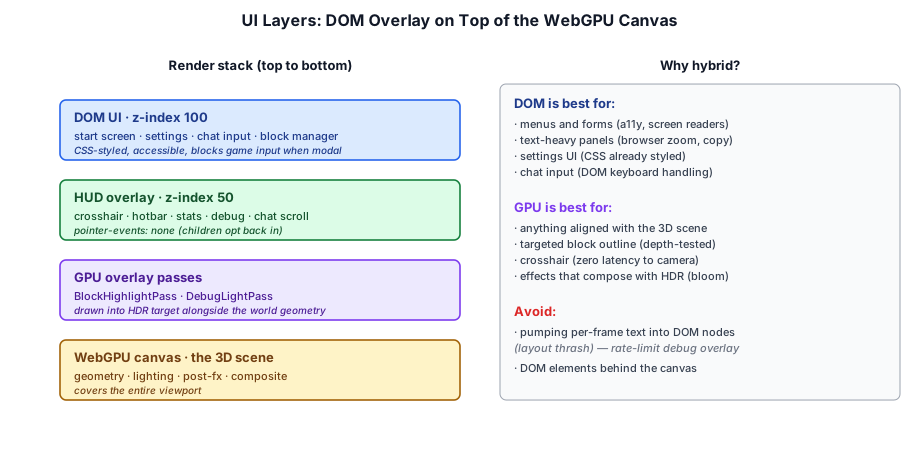
Every Taos Engine app renders into a single <canvas>. Anything else on screen is either another DOM element stacked above that canvas or something drawn into the canvas by a render pass. The two options have very different strengths:
| DOM overlay | In-canvas (render pass) | |
|---|---|---|
| Typesetting, layout, scrolling, forms | Free — the browser does it | You build it |
| Accessibility, browser zoom, IME, copy/paste | Free | Not available |
| Styling | CSS | Shader code |
| Alignment with 3D content | Needs a per-frame projection; lags a frame at worst | Exact — same camera, same frame |
| Depth, HDR, tonemapping, post effects | Never — always composited on top | Participates fully |
| Cost at scale | Layout per element; thousands of moving nodes thrash | One instanced draw |
The rule of thumb that falls out of the table: use the DOM for anything that is screen-space and interactive; use a render pass for anything that belongs to the 3D world. Menus, settings, chat, inventories, debug readouts, and tool panels are DOM. A block-selection outline, a crosshair that must match the projection exactly, world-space labels that must be occluded or tonemapped — those are render passes.
Crafty is a good illustration of the split: its HUD, hotbar, menus, and minimap are all plain DOM elements, while the wireframe around the targeted block is a render-graph pass, BlockHighlightPass, drawn with the same view-projection as the world so it can never drift off the block (see Crafty Chapter 5).
Two practical rules keep a DOM layer from fighting the game:
- Route pointer events explicitly. A first-person game runs under pointer lock (see Chapter 13), and any overlay that swallows a click steals a camera turn or an action. Passive overlays get
pointer-events:noneso clicks fall through to the canvas; only genuinely interactive controls opt back in withpointer-events:auto. - Create once, write per frame. Build every element up front and, in the frame loop, only assign
textContentor atransform. No virtual DOM, no reconciliation, no per-frame allocation — a HUD that updates a dozen readouts costs a dozen string assignments.
Anchoring Overlays to the Presentation Canvas#
A standalone game has exactly one canvas, so "position this overlay over the game" is easy — pin it to the viewport. The editor breaks that assumption: it renders the same Scene into an authoring Scene view and a separate Game view, each with its own canvas. A script that appends a HUD to document.body and centers it would land over whichever panel happens to be under the middle of the window.
Scene.presentationCanvas is the engine's answer. It names the canvas the game is presented on — the surface DOM game UI should align to:
/**
 * The canvas the game is *presented* on — what DOM game UI (HUD overlays
 * positioned over the view) should align to. Defaults to the owning engine's
 * canvas, which is correct for a standalone game (one canvas). The editor sets
 * this to its separate Game view canvas so script-created HUD overlays land
 * over the Game view, not the authoring Scene view (which renders the same
 * scene through the editor's fly camera). Read via {@link presentationCanvas}.
 */
private _presentationCanvas: HTMLCanvasElement | null = null;

// ── ... ──
get presentationCanvas(): HTMLCanvasElement | null {
  return this._presentationCanvas ?? this.engine?.ctx.canvas ?? null;
}
Component code that creates overlays should read this.gameObject.scene?.presentationCanvas rather than grabbing the first <canvas> on the page. The engine's own components follow this rule. GeoReference in src/geo/geo_components.ts pins the data-provider attribution bar (required by most imagery providers' terms) to the presentation canvas's parent, and re-parents it if the canvas changes:
const canvas = this.gameObject.scene?.presentationCanvas ?? engine.ctx.canvas;
if (this._creditsEl && this._creditsCanvas === canvas) {
  return;
}
this._removeCredits();
const parent = canvas.parentElement;
// ── ... ──
if (getComputedStyle(parent).position === 'static') {
  parent.style.position = 'relative';
}
const el = document.createElement('div');
el.className = 'taos-geo-attribution';
el.style.cssText =
  'position:absolute;left:8px;bottom:6px;z-index:10;max-width:75%;' +
  'font:11px/1.5 system-ui,sans-serif;color:#fff;' +
  'text-shadow:0 1px 2px rgba(0,0,0,0.9);opacity:0.9;pointer-events:auto;';
parent.appendChild(el);
CameraController does the same when it attaches its mouse and keyboard listeners from inside a scene (src/engine/camera_controller.ts), so editor play-mode input goes to the Game view.
When the presentation canvas does not fill the window, a position:fixed overlay has to track the canvas rectangle itself. The editor's Tron light-cycle template does this each frame in its HUD component:
const c = this.gameObject.scene?.presentationCanvas ?? this.canvas ?? document.querySelector('canvas');
this.canvas = c;
if (!c) {
  return;
}
const r = c.getBoundingClientRect();
const o = this.overlay.style;
o.left = `${r.left}px`;
o.top = `${r.top}px`;
o.width = `${r.width}px`;
o.height = `${r.height}px`;
getBoundingClientRect is cheap, and writing four style properties that did not change is a no-op for the browser's layout, so doing this every frame is simpler than wiring a ResizeObserver and still handles the editor's dockable panels being dragged around.
The Control-Panel Kit#
Most samples and tools need the same thing: a side panel of labeled sliders, toggles, and dropdowns bound to a handful of parameters. src/html/control_panel.ts is a small, dependency-free kit for exactly that — pure DOM, no engine imports, so it pairs with any browser UI:
| Function | Builds |
|---|---|
sectionHeader(parent, text) | A teal section divider |
addToggle(parent, label, initial, onChange) | A labeled checkbox |
addSlider(parent, label, min, max, step, initial, onChange, fmt?) | A range slider with a live value readout |
addNumberField(parent, label, initial, onChange, opts?) | A number input that commits on Enter / blur, for open-ended values |
addSelect(parent, label, options, initialIndex, onChange) | A labeled <select>; onChange(value, index) |
addButton(parent, label, onClick) | A full-width button on its own row |
makeRow, rowLabel, makeSelect | The building blocks, for custom rows |
Every add* control appends itself to parent and returns a tiny handle with a set method. That handle is the one design decision worth copying: UI state is usually mirrored state — a preset button, a keyboard shortcut, or the simulation itself can change a value the panel displays — and set updates the widget without firing its onChange, so there is no feedback loop:
export function addSlider(
  parent: HTMLElement, label: string, min: number, max: number, step: number, initial: number,
  onChange: (v: number) => void, fmt: (v: number) => string = (v) => v.toFixed(2),
): { set: (v: number) => void } {
  const row = makeRow(label);
  const slider = document.createElement('input');
  slider.type = 'range';
  slider.min = String(min); slider.max = String(max); slider.step = String(step); slider.value = String(initial);
  slider.style.cssText = 'width:104px;margin-left:auto';
  const val = document.createElement('span');
  val.textContent = fmt(initial);
  val.style.cssText = 'color:#5ef0c8;width:46px;text-align:right';
  slider.addEventListener('input', () => { const v = parseFloat(slider.value); val.textContent = fmt(v); onChange(v); });
  row.append(slider, val);
  parent.appendChild(row);
  return { set: (v) => { slider.value = String(v); val.textContent = fmt(v); } };
}
The optional fmt callback formats the readout — integers for counts, three decimals for a decay factor — so the panel reads naturally without the caller managing a second element. In use, a panel is just a sequence of calls. The GPU agent-modeling samples build their entire UI this way inside the controls hook of runAgentModel (see docs/modules/agents.md):
controls: (panel, app) => {
  sectionHeader(panel, 'Turtles');
  addSlider(panel, 'Count', 2, 200, 1, params.population, (v) => { params.population = v | 0; app.rebuild(); }, (v) => `${v | 0}`);
  addSlider(panel, 'Speed', 1, 20, 0.5, params.speed, (v) => { params.speed = v; app.rebuild(); });
  addSlider(panel, 'Wiggle', 0, 1, 0.02, params.wiggle, (v) => { params.wiggle = v; app.rebuild(); });
  sectionHeader(panel, 'Field');
  addSlider(panel, 'Deposit', 1, 20, 0.5, params.deposit, (v) => { params.deposit = v; app.rebuild(); });
  // ── ... ──
The kit intentionally stops at developer-facing panels. A shipped game usually wants its own look — Crafty, for example, has a themed set of settings rows (volume with mute, a time-of-day scrubber, ON/OFF toggles, tabbed pages) that it builds in its own crafty/ui/control_panel.ts and persists to localStorage; those are covered in Crafty Chapter 5. Either way, a volume row is only a view: it writes the master or bus gain on the audio engine (Chapter 14), which owns the actual mix.
Screen-Projected DOM Labels#
The cheapest way to put a label near something in the world is a DOM element moved each frame to the projection of a world-space anchor. The math is the standard pipeline run by hand on the CPU — world → clip space with the camera's view-projection matrix, perspective divide to normalized device coordinates, then NDC → pixels with a Y flip (NDC +Y is up, CSS +Y is down):
const clip = viewProj.transformVec4(new Vec4(anchor.x, anchor.y, anchor.z, 1));
if (clip.w <= 0.001) {
  div.style.display = 'none';
  continue;
}
const ndcX = clip.x / clip.w;
const ndcY = clip.y / clip.w;
if (ndcX < -1 || ndcX > 1 || ndcY < -1 || ndcY > 1) {
  div.style.display = 'none';
  continue;
}
const px = (ndcX * 0.5 + 0.5) * viewportW;
const py = (1 - (ndcY * 0.5 + 0.5)) * viewportH;
div.style.display = 'block';
div.style.left = `${px}px`;
div.style.top = `${py}px`;
This excerpt is from Crafty's multiplayer name tags, but nothing in it is game-specific. The clip.w test matters: a point behind the camera has negative w, and dividing by it mirrors the label onto the screen where it does not belong. The label container is pointer-events:none and overflow:hidden, and each label uses transform: translate(-50%, -100%) so its bottom-center sits on the anchor.
A projected <div> is the ceiling of what DOM labels can do. It is always an axis-aligned screen box: it cannot be occluded by terrain, cannot rotate per glyph along a road, does not go through HDR and tonemapping, and a few hundred of them moving every frame start to cost real layout time. For a handful of name tags that is fine; for a map with thousands of labels it is not — which is what the next sections are for.
clip.w test off. Each pillar's name is a plain <div> moved every frame by the projection above. The camera starts inside the ring, so some pillars are always behind it; without the w > 0 test their anchors divide by a negative w, land mirrored inside the NDC box, and show up in red on the wrong side of the screen. Orbit until a pillar is hidden by the wall: its label still floats on top, because DOM never takes part in depth.Engine-Provided Overlays#
A few engine subsystems ship their own self-contained DOM overlays. They are documented with the systems they belong to, but they follow the same rules as everything in this chapter — lazy creation, explicit pointer-event routing, and no cost when unused:
- Touch controls —
TouchControlsis the mobile overlay: a virtual joystick, a look-drag region with optional pinch-zoom, and a declarative button registry. It installs itself on the first realtouchstart, so desktop sessions never create a single element. See Chapter 13. - Render graph visualizer —
createRenderGraphVizdraws the compiled pass graph as an interactive node diagram, toggled with a hotkey (Gby default). See Chapter 3 and Chapter 19. - Data-source log —
makeDataSourceLogViewis a floating panel for geo-streaming apps showing which source served each network load and a running cache-hit ratio. It touchesdocumentonly when called, never at module load, so re-exporting it from the geo barrel is safe in non-DOM contexts; renders are coalesced to one per animation frame and capped at a fixed row count so a busy log cannot stall the page. - Geo attribution — the provider credits bar owned by
GeoReference, shown in §15.2.
Text Rendering: SDF Glyphs#
DOM textContent is perfect for a HUD — it sits in screen space, never moves with the camera, and the browser does the typesetting. But the moment text has to live in the 3D scene — a street name draped over a map, a label tracking a moving object, text that follows a curved road — DOM falls apart for the reasons listed at the end of §15.4.
So the engine carries its own GPU text renderer in src/text/ — engine-general, not tied to the map that first needed it. The hard part of drawing text on a GPU is that a glyph is a tiny bitmap, and a tiny bitmap scaled up turns blurry or blocky. The fix is a signed distance field (SDF): instead of storing per-texel coverage, store each texel's distance to the nearest glyph edge. Distance interpolates smoothly under bilinear filtering, so one modestly-sized atlas stays razor-sharp from tiny labels to huge ones, and the fragment shader can reconstruct a crisp antialiased edge — plus outlines and halos — for free.
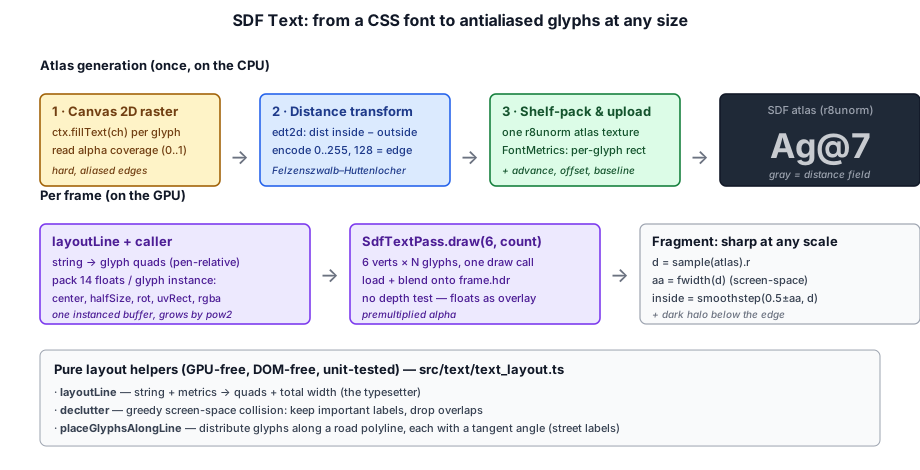
The module's barrel (src/text/index.ts) exports three layers: createSdfFontAtlas builds the atlas, layoutLine / declutter / placeGlyphsAlongLine are pure layout helpers, and SdfTextPass draws the glyphs.
15.6.1 Building the atlas#
createSdfFontAtlas (src/text/text_atlas.ts) is the one browser-only step: it rasterizes a CSS font into a single-channel SDF texture plus a FontMetrics table. This is the standard recipe used by web map renderers — Canvas 2D coverage → Euclidean distance transform → SDF:
// Cell sized to the font's full ascent + descent, not a square `size` box — a square cell clips the
// tails of descenders ('g', 'y', 'p') for fonts whose fontBoundingBox extends past the em.
const cellW = Math.ceil(size) + buffer * 2;
const cellH = ascent + descent + buffer * 2;
// ── ... ──
for (const ch of charset) {
  const cp = ch.codePointAt(0) as number;
  const adv = ctx.measureText(ch).width;
  // ── ... spaces and zero-width glyphs get metrics only ──
  ctx.clearRect(0, 0, cellW, cellH);
  ctx.fillText(ch, buffer, buffer + ascent);              // draw the glyph, padded
  const img = ctx.getImageData(0, 0, cellW, cellH).data;  // read its alpha coverage
  const alpha = new Float32Array(cellW * cellH);
  for (let i = 0; i < cellW * cellH; i++) {
    alpha[i] = img[i * 4 + 3] / 255;
  }
  const sdf = computeSdf(alpha, cellW, cellH, radius);     // coverage → distance field
  const pos = packer.add(cellW, cellH);                    // shelf-pack into the atlas
  sdfs.push({ x: pos.x, y: pos.y, w: cellW, h: cellH, data: sdf });
  glyphs.set(cp, {
    x: pos.x, y: pos.y, w: cellW, h: cellH,
    xOffset: -buffer, yOffset: -(buffer + ascent), advance: adv,
  });
}
computeSdf runs the glyph through a Euclidean distance transform twice — once seeding the covered texels (the inside field) and once seeding the empty ones (the outside field) — and subtracts them, so the result is negative inside the glyph and positive outside. It does not threshold the coverage first. Thresholding at 0.5 would snap the edge to the texel grid, and magnified curves would stair-step. Instead, each anti-aliased edge texel gets a fractional distance from its coverage: about 0.5 − coverage for a straight edge, corrected for the edge's angle using the coverage gradient. Its fully covered or empty neighbors get their distance to that local edge line. These sub-texel distances seed both transforms as squared offsets, so the 0.5 iso-line lands within a few hundredths of a texel of the true outline. The transform itself (edt2d) is the classic Felzenszwalb & Huttenlocher algorithm: a 1D lower-envelope-of-parabolas pass run over every column, then every row. It is pure, exact, and O(n) per pass — and it is unit-tested independently of any canvas. The signed distance is then encoded to 0..255 with 128 sitting on the glyph edge:
const d = Math.sqrt(outer[i]) - Math.sqrt(inner[i]); // <0 inside, >0 outside
const val = 0.5 - d / radius; // inside → >0.5
out[i] = Math.max(0, Math.min(255, Math.round(255 * val)));
The encoded glyphs are packed into one texture by a ShelfPacker — a dead-simple left-to-right, row-by-row packer, which is all a fixed one-shot glyph set needs (no online repacking). The atlas is uploaded as r8unorm (one byte per texel — distance is scalar, we don't need color), and FontMetrics records each glyph's atlas rect, pen advance, and offset from the baseline so layout can typeset without ever touching a canvas again.
The atlas is not limited to letters. SdfFontOptions.customGlyphs takes a list of Canvas 2D draw callbacks, each under its own code point; the atlas builder draws each one into a cell, distance-transforms it, and packs it exactly like a letter. That is how map point-of-interest icons ride the same pass, shader, and declutter as the text beside them.
One more thing happens at upload: the atlas gets a short, box-filtered mip chain and is sampled trilinearly. An SDF is razor-sharp under magnification — that is the whole point — but a single texel tap under heavy minification (a 13px label drawn from a 42px atlas, or a curved label whose glyphs creep sub-pixel each frame) undersamples the field and the edges crawl and shimmer. Mipmaps give the GPU a pre-averaged level to pick. The chain is capped at two levels, deliberately: a packed atlas box-filters neighboring glyph cells together at deep mips, which raises the distance field in the gaps between letters and makes an outline ring appear where there is no glyph.
This is a single-channel SDF, not a multi-channel MSDF. True MSDF keeps sharper corners but needs glyph vector outlines run through offline edge-coloring tooling we can't run in the browser. Because the pass and shader just read a generic distance field, a prebaked MSDF atlas (3-channel,
median(r,g,b)) is a drop-in upgrade later with no pipeline change.
15.6.2 Laying out a line#
With metrics in hand, typesetting is pure arithmetic. layoutLine (src/text/text_layout.ts) walks a string, advancing a pen and emitting one GlyphQuad per visible glyph — corner positions relative to the text origin, plus atlas UVs normalized to 0..1 so the caller can swap atlas resolutions freely:
export function layoutLine(text: string, m: FontMetrics): LaidOutLine {
  const quads: GlyphQuad[] = [];
  let pen = 0;
  for (const ch of text) {
    const g = m.glyphs.get(ch.codePointAt(0) as number);
    if (g === undefined) {
      const space = m.glyphs.get(0x20);          // unknown glyph: advance gracefully
      pen += space ? space.advance : m.lineHeight * 0.3;
      continue;
    }
    if (g.w > 0 && g.h > 0) {
      const x0 = pen + g.xOffset, y0 = g.yOffset;
      quads.push({ x0, y0, x1: x0 + g.w, y1: y0 + g.h, /* ── ...UVs... ── */ });
    }
    pen += g.advance;
  }
  return { quads, width: pen, ascent: m.ascent, descent: m.descent };
}
This module is deliberately GPU-free and DOM-free — reusable by any 2D or 3D label system, identical whether the glyphs came from the runtime SDF atlas or a future prebaked one. It ships three more pure, unit-tested helpers:
declutter— greedy screen-space collision. Given each candidate label's screen box and a priorityrank, it places labels in importance order and drops any that overlap one already kept.O(n²), which is fine for the few hundred candidates a viewport holds after culling.placeGlyphsAlongLine— distributes a line of glyphs along a polyline, giving each glyph a center point and a tangent angle, and flipping the whole run if it would otherwise read right-to-left. This is how street names curve along their roads.buildGlyphTrailTables— lays out a list of words once into flat glyph and word tables for the GPU particle system's glyph-trail node, which places each glyph by arc length along a particle's trail (see src/particles/particle_types.ts and Chapter 9).
15.6.3 The draw pass#
SdfTextPass (src/text/sdf_text_pass.ts) is a generic render-graph pass that draws every glyph on screen in one instanced draw call. Each glyph is one instance of 14 floats — center, half-size, a (cos, sin) rotation (so glyphs can follow a path), the atlas UV rect, and an RGBA color:
/** Floats per glyph instance: center(2) + halfSize(2) + rot(2) + uvRect(4) + color(4). */
export const GLYPH_FLOATS = 14;
// ── ... ──
enc.setPipeline(this._pipeline);
enc.setBindGroup(0, this._bindGroup);   // atlas + sampler + viewport uniform
enc.setVertexBuffer(0, this._instanceBuf);
enc.draw(6, this._count);               // 6 verts × N glyphs
The caller (e.g. GeoLabelFeature) builds that instance buffer each frame; the pass just grows its GPU buffer by powers of two as the glyph count climbs and uploads. It chains onto frame.hdr with loadOp: 'load' and no depth test, so text floats as an overlay on top of the lit scene — the same insertion slot as the lens-flare pass, before tonemap — and blends with premultiplied alpha.
The vertex shader expands each instance into a quad, rotates it by (cos, sin), and maps it to NDC against the viewport size. The fragment shader is where the SDF pays off (src/shaders/sdf_text.wgsl):
let d = textureSample(atlas, samp, in.uv).r;
let w = fwidth(d);
let aa = clamp(w, 0.001, 0.18);
let fill = smoothstep(0.5 - aa, 0.5 + aa, d);
// ── ... ──
let halo = u.halo * (1.0 - smoothstep(0.15, 0.4, w));
// Outer coverage = glyph fill plus the optional outline ring; equals `fill` when halo == 0.
let outer = smoothstep(0.5 - aa - halo, 0.5 + aa - halo, d);
// ── ... ──
let aFill = fill * in.color.a;
let a = (fill + max(outer - fill, 0.0) * RING_MAX) * in.color.a;
return vec4f(in.color.rgb * aFill, a);
fwidth(d) is the trick that makes one atlas work at every size: it measures how fast the distance field changes per screen pixel, so the smoothstep width tracks the on-screen glyph scale automatically — antialiasing stays a constant ~1px whether the label is tiny or filling the screen. The u.halo uniform adds an optional dark outline: outer is a second, wider smoothstep reaching halo below the edge, and the ring between fill and outer contributes coverage with no color. With halo = 0 the ring vanishes and you get plain antialiased text; the geo map raises it so labels stay legible over busy imagery.
15.6.4 Getting the edges right: fringing, counters, descenders, minification#
The lines above are the corrected shader. Earlier versions had subtle but ugly bugs, and chasing them down is instructive — these are the failure modes any SDF text renderer hits.
The dark fringe. The original fragment shader mixed the fill color toward black and scaled the alpha by the same edge coverage:
// WRONG — darkens every antialiased edge twice
let rgb = mix(vec3f(0.0), in.color.rgb, inside);  // color fades to black at the edge
return vec4f(rgb * (inside * in.color.a), inside * in.color.a);
At a half-covered edge texel (inside ≈ 0.5) the color is already halved toward black and the coverage is 0.5, so the premultiplied result is about a quarter of the glyph's color where it should be half. Every glyph got a dim ring one pixel wide — barely visible over a dark scene, but over a bright sky that ring tints the background gray and reads as dirty edge "fringing." The fix is to stop tying the color to the edge: composite a constant-color fill over the dark outline (rgb = color * fill, alpha from outer), so the fill edge keeps its full color and only the genuine outline ring is dark.
Filled counters. A wide always-on halo doesn't just outline the glyph — it grows inward too. At small sizes the inward halo from both sides of a thin stroke meets in the middle and fills the small holes (the counters) of e, o, a, g with black blobs. That's why the halo is a small, caller-controlled value rather than a baked-in constant: general text passes halo = 0 and stays clean; only labels that genuinely need a legibility outline over a busy background opt in, and even then keep it modest.
An outline is not free. The outline is itself a semi-transparent dark ring, so over a bright background it darkens whatever shows through. It's a legibility tool for busy backgrounds — over a clean gradient it just looks like fringing. The crisp samples/text_test.ts showcase passes halo = 0 for exactly this reason; the map keeps its outline because map tiles are visually noisy.
Minified labels. Under heavy minification fwidth blows up, and a wide smoothstep band smears coverage far into the near-empty field between glyphs — stray dark pixels around small labels. The shader therefore clamps aa to 0.18, fades the halo out as w grows past what the field can resolve, and caps the ring's opacity at RING_MAX (0.6) so a sub-pixel ring darkens the background to gray instead of resolving into hard black dots. At normal sizes all three are no-ops.
Descenders and shimmer round out the list — both covered above: size the atlas cell to the font's real ascent + descent so g/y/p tails aren't clipped, and mip the atlas so minified or animated labels don't crawl. None of these are exotic; they're the standard tax on rolling your own SDF text, and the unit-tested pure core (computeSdf, layoutLine) is what let us fix the shader and atlas without re-deriving the typesetting each time.
computeSdf, and reconstructed per pixel with the math of sdf_text.wgsl. Compare Coverage bitmap, which blurs as it magnifies, with SDF, which keeps a crisp one-pixel edge and smooth curves at any scale, because the field is seeded from the anti-aliased coverage rather than a thresholded bitmap. Turn on the old shader over the bright sky to see the fringe, and raise the halo over the busy backdrop, then at small scales, to watch it fill the counters of e, a, and g.15.6.5 Map labels, end to end#
GeoLabelFeature (src/geo/geo_label_feature.ts) wires the whole thing together for the geo map and is the reference consumer worth reading if you build your own. Each frame it: projects every label's anchor into screen space under the floating origin; runs point labels through layoutLine and street labels through placeGlyphsAlongLine; declutters the survivors by priority; ramps a per-label fade opacity so labels fade in and out instead of popping; and emits the glyph instances for SdfTextPass. It's a good template for any in-world text — health bars, damage numbers, waypoint markers — that needs to be sharp, cheap, and composited with the 3D scene rather than bolted on as DOM.
Summary#
Taos Engine leans on the browser for UI and only takes over where the DOM cannot follow:
- DOM vs. in-canvas — screen-space, interactive UI goes in the DOM; anything that must match the 3D projection exactly or pass through HDR is a render pass. Passive overlays are
pointer-events:none; elements are created once and only written per frame. Scene.presentationCanvas— the canvas DOM game UI should anchor to; the engine's own overlays (geo attribution, camera input) use it so the same scene works standalone and in the editor's Game view.- Control-panel kit (
src/html/control_panel.ts) — dependency-free sliders, toggles, selects, number fields, and buttons, each returning asethandle for mirroring external changes without feedback loops. - Screen-projected labels — world → clip → NDC → pixels on the CPU, with a
w > 0test for points behind the camera; fine for a few tags, not for thousands. - Engine overlays — touch controls, the render graph visualizer, and the geo data-source log, all lazily created.
- SDF text (
src/text/) — a Canvas-rasterized, distance-transformed glyph atlas, pure layout helpers (layoutLine,declutter,placeGlyphsAlongLine), and a one-draw-callSdfTextPassthat stays sharp at any scale and composites with the 3D scene.
For a complete game UI built on these principles — HUD, start screen, hotbar, inventory, menus, settings, and minimap — see Crafty Chapter 5.
Further reading:
- src/engine/scene.ts —
Scene.presentationCanvas - src/html/control_panel.ts — settings-row helpers for sample and tool panels
- src/engine/touch_controls.ts — mobile overlay (Chapter 13)
- src/renderer/render_graph/ui/render_graph_viz.ts — render graph visualizer
- src/geo/data_source_log_view.ts — geo data-source log panel
- src/text/ — SDF atlas generation, pure layout helpers, and the glyph draw pass
- src/shaders/sdf_text.wgsl — SDF antialiasing fragment shader
- src/geo/geo_label_feature.ts — end-to-end in-world labels (the reference consumer)
- samples/text_test.ts — minimal SDF text showcase