Taos Engine Chapter 15 covers the engine's side of UI: when to use DOM overlays versus render passes, pointer-event routing, anchoring overlays to the presentation canvas, and GPU text. This chapter walks every screen the player actually touches in Crafty: the start screen that picks a world, the main screen (the always-on HUD), the inventory hotbar and its control-button row, the inventory menu, the system menu and the settings panel inside it, and the minimap. Every one of them lives in crafty/ui/ and is built from plain DOM elements — there is no separate UI renderer. The one exception is the outline around the targeted block, which is a render pass, BlockHighlightPass, because it must line up exactly with the 3D scene.
The UI Layer#
Crafty's interface is a stack of DOM elements layered over the single full-screen WebGPU <canvas>. Each widget is created imperatively, styled with an inline cssText, and appended to document.body. There is no framework, no virtual DOM, and no per-frame allocation — the game loop only writes textContent (and a few transforms) on elements that already exist.
The whole UI lives in one directory:
| Module | Screen |
|---|---|
crafty/ui/start_screen.ts | Pre-game launcher: saved worlds, new world, network lobby (§5.2) |
crafty/ui/hud.ts | The main screen: reticle, clock, debug overlay (§5.3) |
crafty/ui/hotbar.ts | The inventory hotbar + the on-screen control buttons (§5.4) |
crafty/ui/block_manager.ts | The creative inventory menu: block picker + draggable hotbar (§5.5) |
crafty/ui/survival_inventory.ts | The survival inventory: 27-slot grid, hotbar row, recipe-book crafting |
crafty/ui/crafting_view.ts, furnace_view.ts, chest_view.ts | Crafting-table, furnace, and chest screens |
crafty/ui/menu.ts | The modal primitive behind every menu (§5.6) |
crafty/ui/control_panel.ts | The settings row widgets mounted inside the system menu (§5.7) |
crafty/ui/minimap.ts | The north-up minimap (§5.8) |
crafty/ui/chat.ts | The multiplayer chat box (see Chapter 8) |
The single most important layout rule is pointer-events routing. The game runs under pointer lock: while playing, the mouse drives the camera, not a cursor. So passive overlays (the reticle, the minimap panel, the debug text) are marked pointer-events:none — clicks fall straight through them to the canvas and never steal a block-place or a camera turn. Only genuinely interactive controls (the hotbar buttons, the clickable clock, the minimap zoom buttons, menu cards) opt back in with pointer-events:auto.
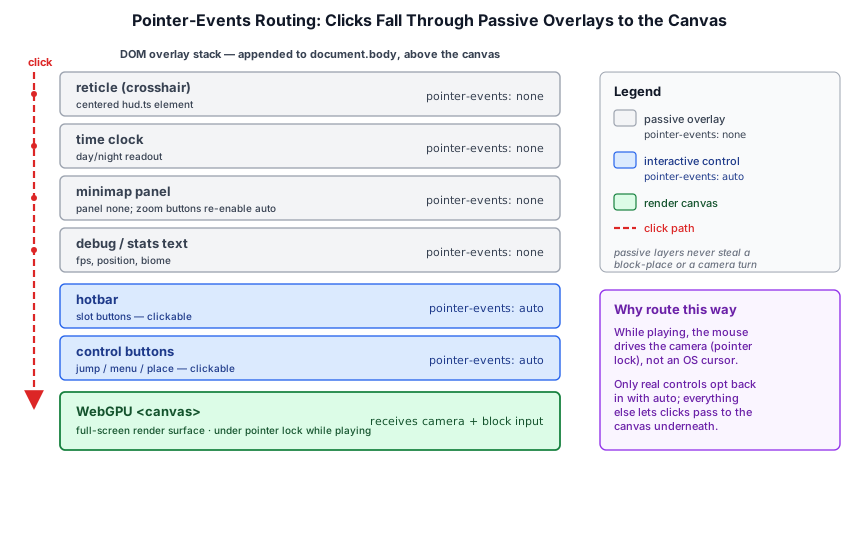
'pointer-events:none', 'overflow:hidden', 'z-index:5',
// ── ...the zoom buttons sit inside it and re-enable pointer events: ──
'display:flex', 'gap:4px', 'pointer-events:auto',
Opening a menu is the one moment the model changes: the menu releases pointer lock so the OS cursor reappears and the player can click buttons; closing it re-acquires lock and drops them straight back into the game (§5.6).
The Start Screen#
Before any world exists, showStartScreen() in crafty/ui/start_screen.ts puts up a full-screen launcher over the splash image and returns a promise of what the player chose:
export type StartChoice =
  | { mode: 'local'; world: SavedWorld; storage: WorldStorage | null; playerName: string }
  | {
      mode: 'network';
      playerName: string;
      serverUrl: string;
      network: NetworkClient;
      welcome: ConnectResult;
      world: WorldSummary;
    };

export async function showStartScreen(): Promise<StartChoice>
The card has a player-name field and two tabs:
- Local — two sub-tabs. Saved lists the worlds in IndexedDB (most recent first, each with a creative/survival badge, a relative "last played" time, and a delete button). New takes a world name, a seed, a game mode (Survival or Creative), and a world type (normal procedural terrain, or the imported castle). The launcher opens on Saved when worlds exist and jumps straight to New otherwise.
- Network — a one-click Connect to Taos Engine Server button plus a custom-URL field. Once connected, the same panel becomes a lobby: a live list of the server's worlds to join, and a form to create a new one.
The seed field defaults to empty, meaning random. A non-numeric seed is hashed (FNV-1a) into a deterministic number, and the resolved seed is written back into the field so a world worth keeping can be read straight off the form:
function parseSeed(raw: string): number
{
  const trimmed = raw.trim();
  if (trimmed.length === 0) {
    return Math.floor(Math.random() * 0x7fffffff);
  }
  const n = Number(trimmed);
  if (Number.isFinite(n)) {
    return Math.floor(n);
  }
  // Non-numeric: hash the string so "alpha" -> deterministic seed.
  let h = 2166136261 >>> 0;
  for (let i = 0; i < trimmed.length; i++) {
    h = Math.imul(h ^ trimmed.charCodeAt(i), 16777619) >>> 0;
  }
  return h & 0x7fffffff;
}
The promise resolves in one of two ways, and both hand main everything it needs so nothing is redone:
- A local world. Newly created worlds are saved to IndexedDB before the promise resolves, so they appear in the saved list even if the player quits immediately. If storage is unavailable (private browsing, no IndexedDB), the launcher still synthesizes an in-memory world so the game plays for the session — it just won't persist.
- A network world. The
NetworkClientis already connected and thewelcomepayload received, so the bootstrap never re-handshakes (see Chapter 8).
Name, last seed, and server URL are sticky in localStorage. The URL is written only after a successful handshake, so its presence means "this player has played multiplayer before" — and the launcher auto-connects to it on open. If the player then picks a local world instead, finish() closes that lobby socket so the server can release the slot:
function finish(choice: StartChoice): void
{
  localStorage.setItem(LS_NAME, getName());
  // Single-player mode doesn't use the auto-connected lobby socket. Close it
  // so the server can release the player slot.
  if (choice.mode === 'local' && activeNetwork !== null) {
    activeNetwork.disconnect();
    activeNetwork = null;
  }
  overlay.remove();
  resolve(choice);
}
The launcher removes its own overlay when it resolves, so the game starts with a clean document.body.
The Main Screen#
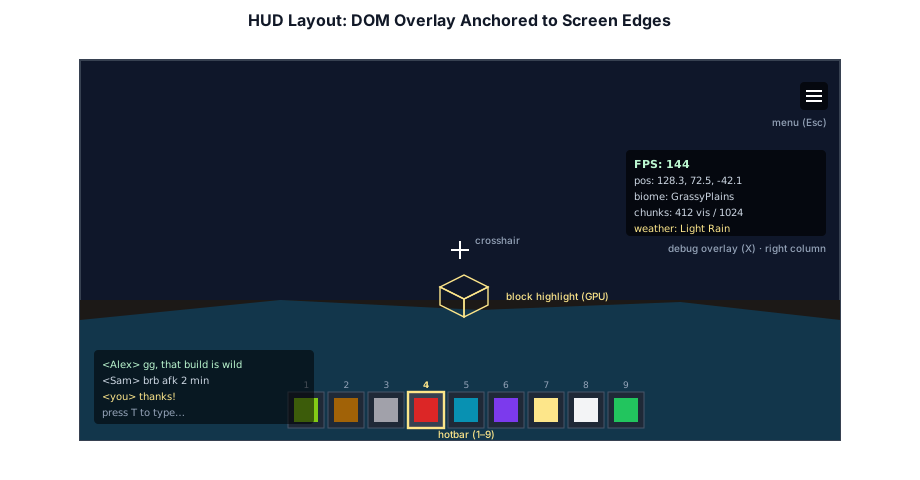
The "main screen" is the always-on gameplay HUD, assembled once by createHud() in crafty/ui/hud.ts. It returns a struct of element handles the game writes to each frame:
export interface HudElements {
  fps: HTMLDivElement;
  stats: HTMLDivElement;
  biome: HTMLDivElement;
  pos: HTMLDivElement;
  weather: HTMLDivElement;
  reticle: HTMLDivElement;
  target: HTMLDivElement;
  /** Time-of-day clock — always visible, not part of the debug overlay. */
  time: HTMLDivElement;
}
Two elements are visible by default:
The reticle (crosshair). A small CSS-drawn cross pinned to screen center,
pointer-events:none, so it marks the block under the camera without ever intercepting a click:crafty/ui/hud.tsTypeScriptreticle.innerHTML = [ `<div style="position:absolute;top:50%;left:0;width:100%;height:3px;background:#fff;opacity:0.8;transform:translateY(-50%)"></div>`, `<div style="position:absolute;left:50%;top:0;width:3px;height:100%;background:#fff;opacity:0.8;transform:translateX(-50%)"></div>`, `<div style="position:absolute;top:50%;left:50%;width:7px;height:3px;background:#fff;opacity:0.9;transform:translate(-50%,-50%);border-radius:50%"></div>`, ].join('');The time-of-day clock. A pill at top-center showing the in-world
HH:MM, driven by the day-night cycle. Unlike the rest of the HUD it is clickable: clicking it (or pressing L) pops up a time-of-day scrub slider beneath it — the same time control that also appears in the settings panel (§5.7).
Everything else — fps, stats (draws/tris/chunks), biome, pos, weather, and target (the block under the reticle) — forms a debug overlay that is display:none until the player presses X. The fps, stats, and weather boxes flow down a flex column on the right edge, tucked below the minimap panel so the two never collide; biome, pos, and target stack up from the bottom-right corner:
// Top-right debug column — fps/stats/weather flow vertically with a gap so a
// multi-line box (e.g. the stats box) never overlaps the box below it. Sits
// below the minimap panel; right-aligned so each box hugs the right edge.
const topRight = document.createElement('div');
topRight.style.cssText = [
  'position:fixed', 'top:248px', 'right:12px',
  'display:flex', 'flex-direction:column', 'align-items:flex-end',
  'gap:6px', 'pointer-events:none',
].join(';');
Using a flex column rather than hand-placed top offsets matters because stats and weather are multi-line (white-space:pre): their heights change with their content, and fixed offsets would let a tall box overlap the one below it.
Because the elements are created once, the per-frame cost of the HUD is just a handful of textContent assignments — no reconciliation, no garbage. The bottom edge of the main screen is owned by the inventory hotbar and its control-button row, which we look at next.
The Inventory Hotbar#
The hotbar (crafty/ui/hotbar.ts, createHotbar()) is the row of nine slots centered along the bottom of the screen, plus a row of action buttons beneath it. In creative mode the slots start from a default loadout; survival starts empty and fills as the player picks things up:
// Default hotbar layout, used in creative mode. Survival starts empty (all
// slots BlockType.NONE) and fills in as the player picks blocks up.
const DEFAULT_HOTBAR: BlockType[] = [
  BlockType.DIRT,
  BlockType.IRON,
  BlockType.STONE,
  BlockType.SAND,
  BlockType.TRUNK,
  BlockType.SPRUCE_PLANKS,
  BlockType.GLASS,
  BlockType.TORCH,
  BlockType.WATER,
];
The bar itself is the Litecraft hotbar.png sprite drawn with image-rendering:pixelated, scaled up to 1.6× on roomy screens and down on narrow phones so the whole row always fits. A second copy of the sprite's 24×24 selector cell is a separate overlay element that slides over the active slot with a short CSS transition. Each slot draws its icon on a per-slot <canvas> with drawItemIcon (crafty/game/items.ts), which blits a block's side-face tile out of the texture atlas — or, for a tool, its procedurally shaded icon — and tools additionally get a durability bar when worn.
Selection has three input paths, all funnelling through updateSelection() (which repositions the selector overlay and fires the change callback):
Number keys 1–9 select a slot directly.
Shift + mouse wheel cycles through slots, wrapping at both ends. The plain wheel is taken by the camera zoom (first person ↔ third person), and because browsers often report a Shift-held wheel as horizontal scrolling, the handler reads
deltaXwhendeltaYis zero:crafty/ui/hotbar.tsTypeScriptwindow.addEventListener('wheel', (e) => { if (!e.shiftKey) { return; } const delta = e.deltaY !== 0 ? e.deltaY : e.deltaX; if (delta === 0) { return; } selected = (selected + (delta > 0 ? 1 : N - 1)) % N; updateSelection(); }, { passive: true });Clicking a slot selects it.
The Control Button Row#
Beneath the bar, createHotbar lays out a centered, wrapping flex row of buttons. Hidden buttons simply collapse out of the row, so it stays centered whatever subset is showing:
| Button | Key | Action |
|---|---|---|
| 💡 | F | Toggle flashlight (desktop only) |
| 🏃 | R | Toggle run (desktop only) |
| 🗺 | M | Toggle the minimap (§5.8) |
| 🎒 | E | Open the inventory menu (§5.5) |
| ⚙ | ESC | Open the system menu (§5.6) |
| 💬 | T | Open chat (multiplayer only) |
| 🕐 | L | Open the time-of-day popover under the clock |
The buttons exist so touch devices — which have no physical keyboard for the hotkeys — can reach every action, and the game hides the ones that don't apply (chat in single-player, flashlight/run on mobile). Touch reliability is handled by also firing on touchend, since some mobile browsers delay or drop the synthetic click:
chatBtn.addEventListener('touchend', (e) => {
  e.preventDefault();
  onChatToggle?.();
}, { passive: false });
The hotbar exposes getSelected(), getSelectedSlot(), setSelectedSlot(), refresh(), and setOnSelectionChanged() so the game loop knows which block to place and the inventory menus can stay in sync.
The Inventory Menu#
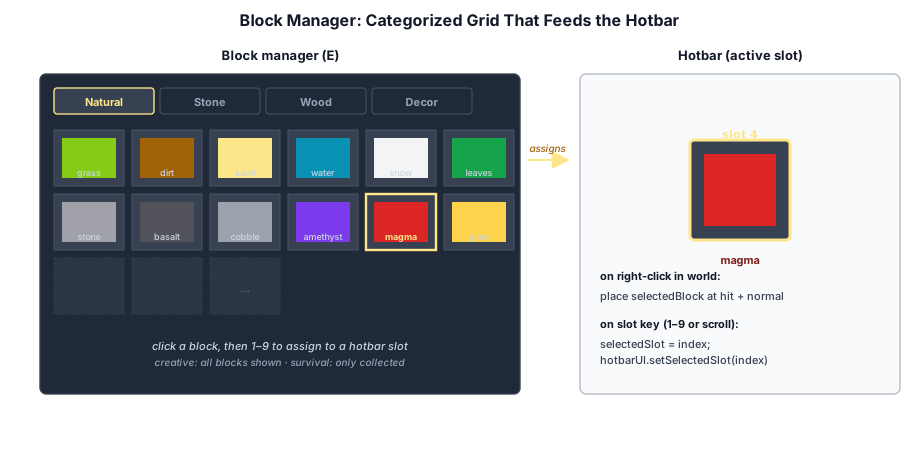
Pressing E (or the 🎒 button) opens the inventory menu, a menu card (the same modal primitive as the system menu, §5.6) whose body depends on the game mode. In survival it shows crafty/ui/survival_inventory.ts — a 27-slot grid, the hotbar row, and a 2×2 recipe-book crafting area. In creative it shows the block manager, createBlockManager() in crafty/ui/block_manager.ts: a full picker of everything placeable over the new_inventory.png background sprite, with a scrollable grid on top and a draggable copy of the nine hotbar slots below.
The creative palette is hand-curated in crafty/config/creative_palette.ts and organized into tabs — Building, Colored, Natural, Functional, Redstone — plus two non-block tabs, Tools and Food, that the picker appends. Only blocks a player would actually place appear; texture-tile artifacts of the block catalog (furnace fronts, door halves, crop growth stages, lit/powered twins) are left out. The grid shows the active tab, or, when the search box has text, every palette entry whose name matches. In survival the same component shows only what the player has gathered, with a stack-count badge on each slot, and the tab bar is hidden:
function gridItems(): Array<{ type: BlockType; count: number | null }> {
  if (inventory && inventory.mode === 'survival') {
    return inventory.items()
      .filter(it => isBlockItem(it.type))
      .map(it => ({ type: it.type, count: it.count }));
  }
  let items = palette;
  if (searchText) {
    items = items.filter(e => getItemName(e.type).toLowerCase().includes(searchText));
  } else {
    items = items.filter(e => e.category === activeCategory);
  }
  return items.map(e => ({ type: e.type, count: null }));
}
Because a tab can hold more blocks than fit, the grid lives in a clipped viewport (21 columns × 6 visible rows) over a tall content div whose inventory_cell.png background tiles one grid cell per slot. One subtlety: the wheel event over the grid is stopped so it scrolls the grid instead of bubbling up to the window-level handler that cycles the hotbar selection:
invScroll.addEventListener('wheel', (e) => { e.stopPropagation(); }, { passive: true });There are three ways to assign blocks:
- Click a grid block to drop it into the currently selected hotbar slot.
- Drag a grid block onto a hotbar slot to copy it there.
- Drag one hotbar slot onto another to swap them.
The drop handler distinguishes copy from swap by whether the drag originated in the hotbar (dragHotbarIdx):
div.addEventListener('drop', (e) => {
  e.preventDefault();
  div.style.boxShadow = '';
  if (!dragBlock) {
    return;
  }
  if (dragHotbarIdx !== null && dragHotbarIdx !== i) {
    // swap two hotbar slots
    [hotbarSlots[i], hotbarSlots[dragHotbarIdx]] = [hotbarSlots[dragHotbarIdx], hotbarSlots[i]];
  }
  else if (dragHotbarIdx === null) {
    hotbarSlots[i] = dragBlock;
  }
  syncHotbar();
  onHotbarChanged();
  dragBlock = null; dragHotbarIdx = null;
});
Because the inventory menu and the on-screen hotbar share the same hotbarSlots array, syncHotbar() redraws the in-panel row and onHotbarChanged() refreshes the live bar. refreshSlotHighlight() outlines the active slot so the player can see which slot a clicked block will land in. Finally, the whole panel is scaled with a CSS transform to fit the window width (between 0.3× and 1.6×), so the pixel-exact sprite layout never needs recomputing for different screens.
The System Menu#
The system menu is the pause screen, opened with ESC (or the ⚙ button). It, the inventory menu, and the crafting-table, furnace, and chest screens are all instances of one small modal primitive, createMenu() in crafty/ui/menu.ts:
export interface MenuConfig {
  /** Heading shown at the top of the card. */
  title: string;
  /** Optional key code (e.g. 'KeyE') that toggles the menu open/closed. ESC always closes. */
  toggleKey?: string;
  /** When true, the menu auto-opens on pointer-lock release (pause-on-ESC behavior). */
  autoOpenOnPointerLockLoss?: boolean;
  /** When true, prepend a "Resume Game (ESC)" button under the title. */
  showResumeButton?: boolean;
  onOpen?: () => void;
  onClose?: () => void;
}
The game creates the system menu (with a Resume button) and the inventory menu (toggled with E) up front. Opening the inventory menu closes the system menu so only one card is ever up, and swaps its body for the current game mode:
const systemMenu = createMenu(canvas, hud.reticle, {
  title: 'CRAFTY',
  showResumeButton: true,
  onOpen: trackMenuActivity,
  onClose: trackMenuActivity,
});
const invMenu = createMenu(canvas, hud.reticle, {
  title: 'INVENTORY',
  toggleKey: 'KeyE',
  onOpen: () => {
    trackMenuActivity();
    systemMenu.close();
    refreshInventoryView();
  },
  onClose: trackMenuActivity,
});
A menu is a dimmed full-screen overlay holding a centered card (exposed as menu.card for callers to fill). Opening it hides the reticle and exits pointer lock so the cursor is usable; closing it (via ESC, the × button, or the Resume button) re-acquires lock so the player drops straight back into the game. A 200 ms debounce stops the key press that opened the menu from immediately closing it:
function toggle(): void {
  if (isOpen()) {
    if (performance.now() - menuOpenedAt < 200) {
      return;
    }
    close();
    try { void canvas.requestPointerLock(); } catch { /* unsupported / touch */ }
  } else {
    open();
    if (document.pointerLockElement === canvas) {
      document.exitPointerLock();
    }
  }
}
For a true pause-on-release menu, the primitive also offers an autoOpenOnPointerLockLoss flag: when set, the menu pops itself open whenever the browser breaks pointer lock (the user pressed ESC, or alt-tabbed) and dismisses itself when the user clicks back into the canvas:
if (config.autoOpenOnPointerLockLoss) {
  document.addEventListener('pointerlockchange', () => {
    if (_suppressAutoOpen) {
      return;
    }
    if (document.pointerLockElement === canvas) {
      close();
    } else {
      open();
    }
  });
}
The overlay also swallows the browser context menu and keeps wheel events from leaking to the window, since right-click and scrolling are UI gestures inside the crafting and inventory screens. The system menu's card holds an exit button and, below it, the settings panel.
The Settings Panel#
The settings panel is built in crafty/main.ts from the row widgets in crafty/ui/control_panel.ts and appended into the system-menu card. Unlike the engine's developer-facing control-panel kit (see Taos Engine Chapter 15), these widgets are themed for the game's light settings card and share one set of style constants, so every row — a fixed-width label on the left, controls on the right, wrapping below the label on narrow phones — lines up in a column:
| Widget | Builds |
|---|---|
createTabbedSettings() | A row of tab buttons over one visible content panel; tab(name) creates or returns a page |
createSettingsSection(title, children) | An uppercase heading over a vertical stack of rows |
createSettingsToggle(label, initial, onChange) | A single ON/OFF button row |
createSettingsSelector(label, initial, options, onChange) | A labeled <select> over a string-valued enum |
createSettingsSlider(...) | A labeled slider with a readout |
createVolumeControl(volume, muted, onVolume, onMute) | Mute button + 0–100 slider + percentage |
createTimeControl(hours, paused, onPause, onScrub) | Pause button + 24-hour scrub slider + HH:MM |
createMoonPhaseControl(phase, onScrub) | A moon-phase scrub slider |
createFullscreenControl() | A fullscreen toggle, or null where the Fullscreen API is unavailable |
createControlPanel(effects, labels, groups, onChange, container, extras?) | Grouped sections of ON/OFF effect buttons |
The panel is organized into three tabs so it reads as grouped pages rather than one long scroll:
// Tabbed settings: Game / Graphics / Audio, so the panel reads as grouped
// pages instead of one long scroll. Each tab() returns a content panel to
// append sections to; the first created tab (Game) shows by default.
const settingsTabs = createTabbedSettings();
setPanel.appendChild(settingsTabs.root);
const gameTab = settingsTabs.tab('Game');
const graphicsTab = settingsTabs.tab('Graphics');
const audioTab = settingsTabs.tab('Audio');- Game — a World section (the creative/survival mode toggle in single-player only, since a multiplayer world's mode is server-authoritative; the time control; the moon-phase slider) and a Gameplay section of god-mode switches (no hunger, no damage, no item damage).
- Graphics — a Display section (view range, shadow cascades, grass density/height/wave, fullscreen, reversed-Z) plus the effect toggles from
createControlPanel, grouped byEFFECT_GROUPS, with the shadow, cloud, ambient-occlusion, and anti-aliasing method selectors attached to their groups through theextrasmap. - Audio — master volume with mute, plus music and effects bus volumes. These are thin views over the audio engine's buses (see Chapter 7).
createControlPanel owns the effect state it is handed: each button flips effects[key] itself and then calls onChange(key), so the game's callback only has to apply the side effect. It also has a safety net for the extras map — a control keyed by a title with no matching effect group still gets its own section instead of silently disappearing:
// Safety net: any `extras` keyed by a title with no matching effect group
// still renders as its own section (otherwise those controls would silently
// vanish — which is exactly how the Reversed-Z selector went missing).
if (extras) {
  for (const [title, controls] of Object.entries(extras)) {
    if (!rendered.has(title)) {
      container.appendChild(createSettingsSection(title, controls));
    }
  }
}
The time control is instantiated twice — once in the clock popover (§5.3) and once on the Game tab. Both write the same sunAngle, and each control's setPaused() keeps the other's pause glyph in step without re-firing its callback. While the player drags either slider, isScrubbing() reports true and the frame loop stops pushing the cycle's time into it, so the thumb never fights the pointer.
Persistence#
Every change calls persistSettings(), which snapshots the panel into a GameSettings record (crafty/config/game_settings.ts):
export interface GameSettings {
  effects: Record<EffectKey, boolean>;
  aoMethod: AOMethod;
  aaMethod: AAMethod;
  /** Master volume, 0–1. */
  masterVolume: number;
  /** Background-music bus volume, 0–1. */
  musicVolume: number;
  /** Sound-effects bus volume, 0–1. */
  effectsVolume: number;
  /** Global mute. */
  muted: boolean;
  /** Day-night cycle frozen (time-of-day paused). */
  timePaused: boolean;
  // ── ... reversedZ, renderDistance, shadowCascades, grass density/height/wave,
  //        disableHunger, disableDamage, disableItemDamage ──
}
Settings are JSON-encoded into localStorage under the crafty.game.settings key. loadGameSettings() merges the stored record over the shipped defaults and validates every field — enum strings against their allowed lists, numbers against their ranges — so a stale or hand-edited entry cannot break the game. Saving is wrapped in try/catch: if storage is blocked or full, settings simply don't persist. One setting, reversed-Z depth, is baked into pipelines when the render context is created, so changing it reloads the page.
The Minimap#
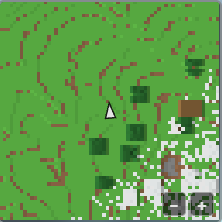
The minimap (crafty/ui/minimap.ts) is a north-up overhead map fixed to the top-right corner, hidden until the player presses M (or the 🗺 button). It paints the highest non-air block of every surrounding column in that block's color, scrolls smoothly with the player, and overlays a facing arrow plus markers for networked players.
Lazy, cached terrain sampling. Walking the voxel world every frame for a window up to 128 columns wide would be far too expensive, so terrain is sampled lazily and cached per world column (the cache is zoom-independent — it stores the top block's height and packed color):
/** Returns topY*0x1000000 + sRGB, or undefined for an empty/unloaded column. */
private sampleColumn(wx: number, wz: number, maxY: number): number | undefined {
  const topY = this.world.getTopBlockY(wx, wz, maxY);
  if (topY <= 0) {
    return undefined;
  }
  const bt = this.world.getBlockType(wx, topY - 1, wz);
  if (isBlockWater(bt)) {
    return topY * 0x1000000 + WATER_RGB;
  }
  if (bt === BlockType.GRASS) {
    return topY * 0x1000000 + GRASS_RGB;
  }
  const [lr, lg, lb] = getBlockColor(bt);
  // ── ... getBlockColor returns linear RGB; convert each channel back to sRGB bytes ──
}
Water and grass are special-cased to fixed colors: the atlas grass tile is grayscale (biome-tinted only at render time) and the water tile averages to a murky color, both of which would read poorly on a flat map. Every other block is converted from the engine's linear HDR color back to sRGB bytes via linearToSrgb, the inverse of the transfer used by getBlockColor.
To keep first-open and teleports from stalling a frame, each refresh samples at most SAMPLE_BUDGET (3000) new columns; if it runs out it stays "dirty" and fills the remainder over subsequent frames. A west-neighbor height comparison adds cheap relief shading so terrain reads as 3D.
Smooth scrolling. The cached raster is snapped to integer columns, but the panel blits it with a sub-block fractional offset so the map glides under a centered player instead of jumping column by column:
const originX = center - (this.radius + (playerX - cx)) * scale;
const originZ = center - (this.radius + (playerZ - cz)) * scale;
ctx.imageSmoothingEnabled = false;
ctx.drawImage(this.offscreen, originX, originZ, this.size * scale, this.size * scale);
Overlays. The cheap overlay layer redraws every frame so the markers stay smooth even when the terrain raster doesn't change. It draws a white facing arrow at center (rotated by the player's yaw), and — when networking is active — a dot per remote player, with off-map players clamped to the panel edge as a triangle that points the way and a name + distance label (this ties into remote-player tracking from Chapter 8).
Zoom and invalidation. Three radii (64/32/16 blocks, opening at 32) are cycled with the −/+ buttons (re-enabled for pointer events even though the panel is click-through). The widest is capped at 64 because anything further out is mostly unstreamed terrain. When the local player edits a block, or a chunk re-meshes from streaming or a remote edit, the affected columns are dropped from the cache so the map refreshes:
const ZOOM_LEVELS = [64, 32, 16];
// ── ... ──
/** Re-sample a single column on the next refresh (call on local block edits). */
invalidateColumn(wx: number, wz: number): void {
  this.cache.delete(`${Math.floor(wx)},${Math.floor(wz)}`);
  this.dirty = true;
}
A soft cache cap bounds memory on long treks, and setVisible() / toggle() let the player hide the panel entirely.
Summary#
Crafty's UI is deliberately low-tech and built entirely from the DOM:
- One layer, careful routing — every screen is a
document.bodyoverlay over the canvas;pointer-events:noneon passive HUD elements keeps gameplay input flowing to the canvas, while interactive controls opt back in. Only the block-highlight outline is a render pass. - The start screen (
start_screen.ts) — saved and new local worlds plus a network lobby, resolving a typedStartChoicewith the world already persisted or the connection already open. - The main screen (
hud.ts) — an always-on reticle and clickable time clock, plus an X-toggled debug overlay; the game only writestextContenteach frame. - The inventory hotbar (
hotbar.ts) — nine atlas-drawn slots driven by number keys, Shift + wheel, and clicks, with a touch-friendly control-button row. - The inventory menu (
block_manager.ts,survival_inventory.ts) — a tabbed, searchable creative palette or the survival grid with crafting, with click-to-assign and drag-to-swap onto a shared hotbar model. - The system menu (
menu.ts) — one reusable modal for every menu, driving pointer lock for pause-on-ESC. - The settings panel (
control_panel.ts,game_settings.ts) — Game / Graphics / Audio tabs of themed row widgets, persisted tolocalStoragewith per-field validation. - The minimap (
minimap.ts) — a lazily-sampled, column-cached, relief-shaded overhead map that scrolls smoothly and overlays the player arrow and remote-player markers.
Further reading:
crafty/ui/start_screen.ts— pre-game launchercrafty/ui/hud.ts— main-screen HUD elementscrafty/ui/hotbar.ts— inventory hotbar + control buttonscrafty/ui/block_manager.ts— creative inventory menu (block picker, drag/drop)crafty/config/creative_palette.ts— the curated creative tabscrafty/ui/survival_inventory.ts— survival inventory + craftingcrafty/ui/menu.ts— modal primitive for every menucrafty/ui/control_panel.ts— settings row widgetscrafty/config/game_settings.ts— settings persistencecrafty/ui/minimap.ts— north-up minimap- Taos Engine Chapter 15 — engine UI facilities and SDF text