Weather is what makes a landscape feel alive. A static blue sky is technically correct but emotionally flat — the world should cloud over, rain should sweep across the terrain, and snow should dust the peaks. This chapter covers Crafty's dynamic weather system: a lightweight state machine that transitions between weather types over time, driven by the player's current biome.
Weather Types#
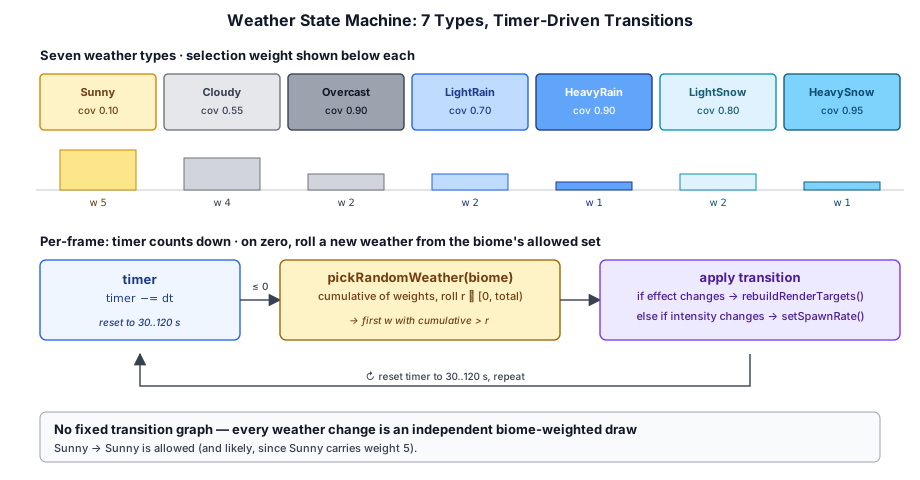
The WeatherType enum in crafty/game/weather_system.ts defines nine weather states:
| Weather | Visual appearance | Precipitation |
|---|---|---|
Sunny | Clear sky, few clouds | None |
Cloudy | Moderate cloud cover | None |
Overcast | Heavy cloud cover, dim | None |
LightRain | Cloudy with light rain | Rain (low rate) |
HeavyRain | Overcast with heavy rain | Rain (high rate) |
LightSnow | Cloudy with light snow | Snow (low rate) |
HeavySnow | Overcast with heavy snow | Snow (high rate) |
LightFog | Thin ground-hugging cloud the player walks through | None |
HeavyFog | Dense ground-hugging cloud, severely reduced visibility | None |
Each weather type carries up to six derived properties:
- Cloud coverage — a
[0, 1]+target that the visual cloud density lerps toward (see §6.4). - Environment effect — maps to
EnvironmentEffect.None / Rain / Snow, which controls whether the particle system is active. - Spawn rate — the per-second particle spawn rate used when rain or snow is active (see §6.5).
- Cloud bounds override — most weather defers to the biome's
cloudBase/cloudTop; the fog weathers (LightFog,HeavyFog) override these to drop the cloud volume to ground level (see §6.4.1). - Cloud density override — most weather uses the global default (
4.0); the fog weathers reduce this so the player can see a useful distance while standing inside the cloud volume. - Cloud ambient whitening — fog weathers pull the bluish cloud ambient toward neutral so the volume reads as white fog from inside, instead of gray cloud (see §6.4.2).
Biome Weather Tables#
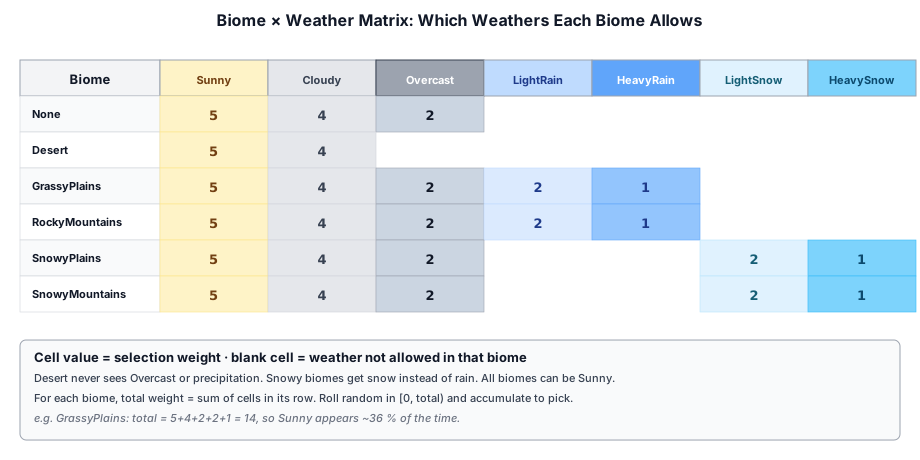
Different biomes have different weather patterns — you will not see snow in the desert. The BIOME_WEATHERS table defines which weather types are valid for each biome:
const BIOME_WEATHERS: Record<BiomeType, WeatherType[]> = {
  [BiomeType.None]:            [Sunny, Cloudy, Overcast, LightFog, HeavyFog],
  [BiomeType.Desert]:          [Sunny, Cloudy],
  [BiomeType.GrassyPlains]:    [Sunny, Cloudy, Overcast, LightRain, HeavyRain, LightFog, HeavyFog],
  [BiomeType.RockyMountains]:  [Sunny, Cloudy, Overcast, LightRain, HeavyRain, LightFog, HeavyFog],
  [BiomeType.SnowyPlains]:     [Sunny, Cloudy, Overcast, LightSnow, HeavySnow, LightFog, HeavyFog],
  [BiomeType.SnowyMountains]:  [Sunny, Cloudy, Overcast, LightSnow, HeavySnow, LightFog, HeavyFog],
};
Desert biomes never see rain, snow, or fog — the arid climate excludes anything that needs sustained moisture. Grassy plains and rocky mountains cycle through fair weather and rain. Snowy biomes get snow instead of rain. Every non-desert biome can roll into either fog weather; LightFog and HeavyFog always travel together, so any biome that can be foggy can be foggy at either intensity.
Each weather type also carries a selection weight — fair weather (Sunny, Cloudy) is more likely than precipitation, and light precipitation is more common than heavy:
const WEATHER_WEIGHTS: Record<WeatherType, number> = {
  [WeatherType.Sunny]:       5,
  [WeatherType.Cloudy]:      4,
  [WeatherType.Overcast]:    2,
  [WeatherType.LightRain]:   2,
  [WeatherType.HeavyRain]:   1,
  [WeatherType.LightSnow]:   2,
  [WeatherType.HeavySnow]:   1,
  [WeatherType.LightFog]:    2,
  [WeatherType.HeavyFog]:    2,
};
The pickRandomWeather function builds a cumulative distribution from the available weathers and their weights, then rolls a random number:
export function pickRandomWeather(biome: BiomeType): WeatherType {
  const available = BIOME_WEATHERS[biome];
  const totalWeight = available.reduce((sum, w) => sum + WEATHER_WEIGHTS[w], 0);
  let r = Math.random() * totalWeight;
  for (const w of available) {
    r -= WEATHER_WEIGHTS[w];
    if (r <= 0) return w;
  }
  return available[available.length - 1];
}Dynamic Weather Transitions#
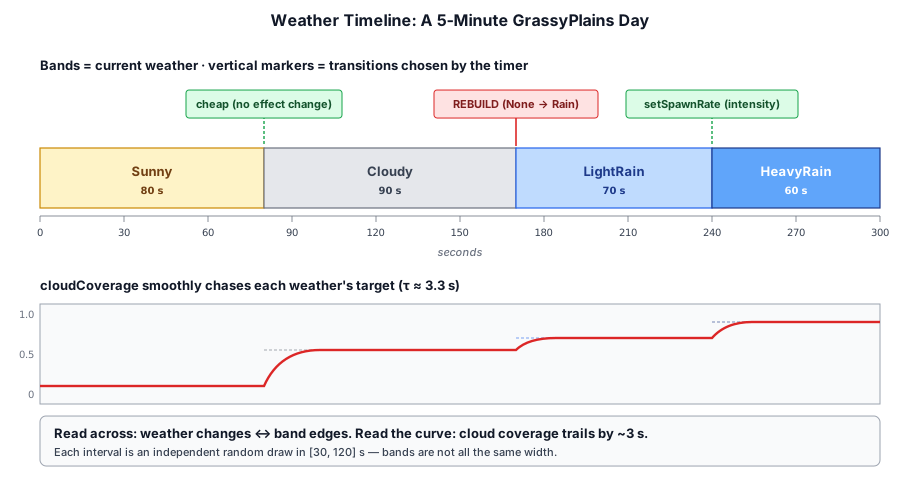
Weather changes automatically over time. A per-frame timer counts down — when it reaches zero, a new weather state is chosen and the timer resets:
export function getWeatherChangeInterval(): number {
  return 30 + Math.random() * 90;  // 30–120 seconds
}
In main.ts, the weather update runs every frame:
weatherTimer -= dt;
if (weatherTimer <= 0) {
  currentWeather = pickRandomWeather(biome, currentWeather);
  weatherTimer = getWeatherChangeInterval();

  const newEffect = getWeatherEnvironmentEffect(currentWeather);
  if (newEffect !== passes.currentWeatherEffect) {
    passes.currentWeatherEffect = newEffect;
    await rebuildRenderTargets();
  }
  const spawnRate = getWeatherSpawnRate(currentWeather);
  if (passes.rainPass && spawnRate > 0) {
    passes.rainPass.setSpawnRate(spawnRate);
  }
}
When the weather type changes, two things happen:
- Environment effect check — if the new weather switches between
None,Rain, orSnow, the persistent pass instances are rebuilt viarebuildRenderTargets()so the particle system is created or destroyed. (The per-frame render graph itself is always rebuilt every frame; this rebuild is the more expensive recreation of pipelines, BGLs, and chunk GPU state on the pass objects.) - Spawn rate update — if the weather intensity changes within the same effect (e.g. LightRain → HeavyRain), the particle pass adjusts its spawn rate dynamically without a rebuild, thanks to
ParticlePass.setSpawnRate().
Cloud Coverage Mapping#
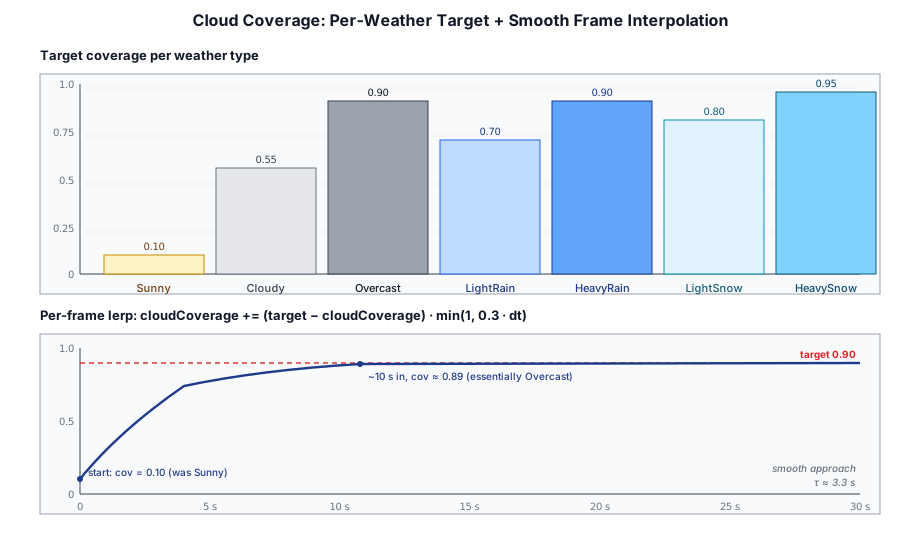
Each weather type dictates a target cloud coverage that the renderer lerps toward:
export function getWeatherCloudCoverage(weather: WeatherType): number {
  switch (weather) {
    case WeatherType.Sunny:      return 0.1;
    case WeatherType.Cloudy:     return 0.85;
    case WeatherType.Overcast:   return 1.1;
    case WeatherType.LightRain:  return 0.95;
    case WeatherType.HeavyRain:  return 1.1;
    case WeatherType.LightSnow:  return 0.8;
    case WeatherType.HeavySnow:  return 1.2;
    case WeatherType.LightFog:   return 0.8;
    case WeatherType.HeavyFog:   return 1.15;
  }
}
HeavyFog targets a coverage > 1.0 — the cloud shader clamps this implicitly, so the entire fog slab fills with cloud rather than the patchy holes you get at sub-1.0 coverage. LightFog deliberately stays under 1.0, leaving the fog patchier and thinner so the player still gets glimpses of clearer air between drifts of cloud.
In the frame loop this target is blended smoothly:
const targetCloudCoverage = getWeatherCloudCoverage(currentWeather);
cloudCoverage += (targetCloudCoverage - cloudCoverage) * Math.min(1, 0.3 * dt);
This feeds into CloudSettings.coverage, which controls the density of the volumetric cloud rendering (Taos Engine §10.8). The smooth interpolation prevents jarring visual jumps when the weather transitions.
6.4.1 Fog: Cloud Bounds and Density Overrides#
The fog weathers (LightFog and HeavyFog) need more than just a coverage tweak — they also relocate the cloud volume down to ground level and thin the cloud density. Two small helpers in weather_system.ts provide these overrides:
export function getWeatherCloudBounds(
  weather: WeatherType,
  biomeBounds: { cloudBase: number; cloudTop: number },
): { cloudBase: number; cloudTop: number } {
  if (weather === WeatherType.LightFog || weather === WeatherType.HeavyFog) {
    return { cloudBase: -10, cloudTop: 80 };
  }
  return biomeBounds;
}

export function getWeatherCloudDensity(weather: WeatherType): number | null {
  switch (weather) {
    case WeatherType.LightFog: return 0.2;
    case WeatherType.HeavyFog: return 0.5;
    default:                   return null;  // use the global default
  }
}
The cloudBase: -10 is below any terrain in the world, so the player is always inside the cloud volume while a fog weather is active. The cloudTop: 80 extends well above typical play altitudes but lets very tall mountains poke above the fog. Both fog types share these bounds — what distinguishes them is the density override.
The density override is the more subtle piece. The standard cloud density (4.0) is tuned for sky-high clouds that the player only marches through when looking up — fully opaque inside, but rarely sampled across more than a few units of optical depth. At ground level the player would be marching through the full slab, which at density 4.0 would render as solid white. HeavyFog drops the density to 0.5 for severely reduced visibility, while LightFog drops it further to 0.2 — a noticeable haze with significantly longer view distance, so distant landmarks remain visible through the fog.
Both overrides are interpolated in the same lerp as coverage, so transitions in and out of fog (and between LightFog and HeavyFog) aren't instant — the cloud layer visibly descends or thickens over a few seconds:
const targetBounds = getWeatherCloudBounds(currentWeather, getBiomeCloudBounds(biome));
cloudBase += (targetBounds.cloudBase - cloudBase) * Math.min(1, 0.3 * dt);
cloudTop  += (targetBounds.cloudTop  - cloudTop)  * Math.min(1, 0.3 * dt);
const targetCloudDensity = getWeatherCloudDensity(currentWeather) ?? 4.0;
cloudDensity += (targetCloudDensity - cloudDensity) * Math.min(1, 0.3 * dt);
This effect only reads as fog because the cloud pass runs in overlay mode (Taos Engine §10.8): premultiplied-alpha cloud color blended over the lit HDR, so clouds occlude geometry between the camera and the gbuffer depth. Without that, the cloud volume would still exist mathematically but lighting would write geometry on top of it, and fog would only be visible against the sky.
6.4.2 Fog: Ambient Whitening#
When you stand inside a fog volume, the sun term is mostly self-shadowed away — most rays through the cloud are blocked by the cloud itself before any direct sun energy contributes. The visible color is then dominated by the ambient term, which by default is the sky-tinted cloudAmbient color. At noon that ambient is roughly (0.40, 0.55, 0.70) — distinctly bluish-gray. The result: fog reads as gray cloud, not as the bright white haze a player expects.
The fix is a small per-weather whitening factor that pulls each channel of the ambient up to the brightest channel:
export function getWeatherCloudAmbientWhiten(weather: WeatherType): number {
  switch (weather) {
    case WeatherType.LightFog: return 0.5;
    case WeatherType.HeavyFog: return 0.85;
    default:                   return 0;
  }
}const baseAmbient: [number, number, number] = [0.02 + 0.38 * dayT, 0.03 + 0.52 * dayT, 0.05 + 0.65 * dayT];
const whiten = getWeatherCloudAmbientWhiten(currentWeather);
const peak = Math.max(baseAmbient[0], baseAmbient[1], baseAmbient[2]);
const cloudAmbient: [number, number, number] = [
baseAmbient[0] + (peak - baseAmbient[0]) * whiten,
baseAmbient[1] + (peak - baseAmbient[1]) * whiten,
baseAmbient[2] + (peak - baseAmbient[2]) * whiten,
];Pulling toward the brightest channel (rather than toward 1.0) preserves the day/night brightness curve — at noon (0.40, 0.55, 0.70) becomes about (0.55, 0.625, 0.70) for LightFog and (0.655, 0.6775, 0.70) for HeavyFog, distinctly whiter. At night, when all three channels are near zero, the lerp does almost nothing, so fog stays dark and atmospheric instead of glowing white. The whitening factor is not lerped during transitions; it's evaluated each frame from currentWeather. The visual smoothing comes from the cloud-coverage/density lerp that already runs in the same frame block.
Precipitation Control#
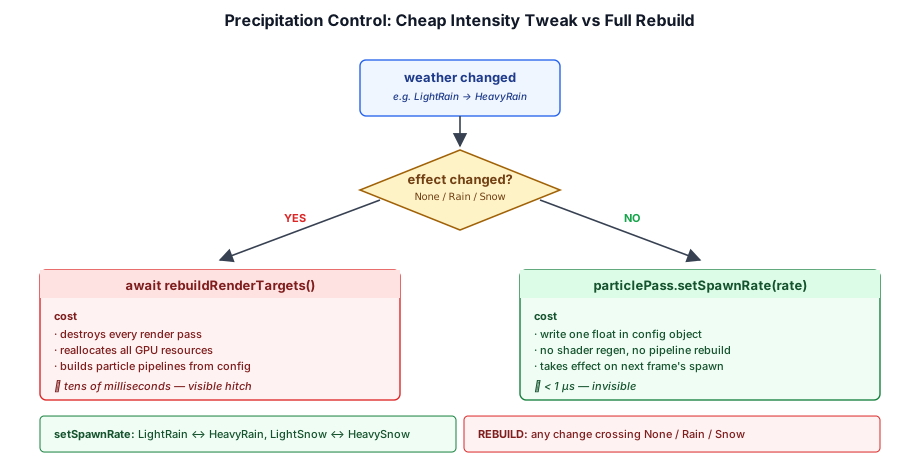
Rain and snow are rendered by ParticlePass with separate configurations (rainConfig and snowConfig in crafty/config/particle_configs.ts). The weather system maps each weather type to an EnvironmentEffect and a spawn rate:
export function getWeatherEnvironmentEffect(weather: WeatherType): EnvironmentEffect {
  switch (weather) {
    case WeatherType.LightRain:
    case WeatherType.HeavyRain:
      return EnvironmentEffect.Rain;
    case WeatherType.LightSnow:
    case WeatherType.HeavySnow:
      return EnvironmentEffect.Snow;
    default:
      return EnvironmentEffect.None;
  }
}

export function getWeatherSpawnRate(weather: WeatherType): number {
  switch (weather) {
    case WeatherType.LightRain:  return 12000;
    case WeatherType.HeavyRain:  return 24000;
    case WeatherType.LightSnow:  return 800;
    case WeatherType.HeavySnow:  return 1500;
    default:                     return 0;
  }
}
The ParticlePass.setSpawnRate() method (added to src/renderer/render_graph/passes/particle_pass.ts) allows changing the spawn rate at runtime without rebuilding the entire pass:
setSpawnRate(rate: number): void {
  this._config.emitter.spawnRate = rate;
}
This is a key performance optimization — rebuilding the persistent pass instances is expensive (it destroys and recreates pipelines, BGLs, and per-pass GPU state), so we only do it when the particle system type changes. Intensity changes within the same type are handled by a simple property write and picked up by the next per-frame graph build.
Integration in the Frame Loop#
The weather system integrates at four points in the main loop (crafty/main.ts):
- Initialization — on startup, a random weather is chosen for the player's spawn biome.
const _initBiome = world.getBiomeAt(cameraGO.position.x, cameraGO.position.y, cameraGO.position.z);
let currentWeather = pickRandomWeather(_initBiome);
let weatherTimer = getWeatherChangeInterval();
Per-frame update — the timer counts down and triggers transitions (described in §6.3).
Cloud coverage blending — the weather-specific target coverage is lerped into the running
cloudCoveragevariable, which feedsCloudSettings(§6.4).HUD update — the weather name, current cloud coverage, and seconds until the next change are displayed in the debug overlay:
hud.weather.textContent = `${getWeatherName(currentWeather)}\nclouds: ${cloudCoverage.toFixed(2)}\nnext: ${weatherTimer.toFixed(0)}s`;The weather debug element is positioned at the top-right of the screen, below the FPS and stats counters. It is hidden by default and toggled with the X key, following the same pattern as the other debug overlays.
Debug Overlay Display#
When the X key is pressed, the debug overlay reveals a dedicated weather panel showing:
- Weather name — e.g. "Light Rain", "Heavy Snow"
- Cloud coverage — the current lerped value (0.00–1.00)
- Time until next change — seconds remaining
Light Rain
clouds: 0.68
next: 47s
The hud.weather element was added to the HudElements interface in crafty/ui/hud.ts:
export interface HudElements {
  fps: HTMLDivElement;
  stats: HTMLDivElement;
  biome: HTMLDivElement;
  pos: HTMLDivElement;
  weather: HTMLDivElement;   // ← new
  reticle: HTMLDivElement;
}
6.8 Summary#
The weather system provides dynamic environmental variation:
- Nine weather types: Sunny through HeavySnow plus LightFog and HeavyFog, with biome-specific weather tables
- Timer-driven transitions: Random intervals (30–120 s) with weighted selection per biome
- Cloud coverage: Interpolated target values drive cloud density changes
- Cloud bounds / density overrides: Both fog weathers drop the cloud volume to ground level;
HeavyFogthins density to 0.5 (severely reduced visibility) andLightFogto 0.2 (light haze) - Cloud ambient whitening: Fog weathers pull the bluish cloud ambient toward neutral so the volume reads as white fog from inside instead of gray cloud
- Precipitation control:
EnvironmentEffect(None/Rain/Snow) with dynamic spawn rates - Debug overlay: Current weather type displayed in the HUD
Further Reading#
crafty/game/weather_system.ts—WeatherTypeenum, biome tables, weather selection, cloud/environment/spawn mappingscrafty/main.ts— Weather state, timer, frame-loop integration, HUD updatesrc/renderer/render_graph/passes/particle_pass.ts—setSpawnRate()for dynamic particle rate changescrafty/ui/hud.ts—weatherdebug overlay elementcrafty/config/particle_configs.ts— Rain and snow particle configs consumed byParticlePass